> ## Documentation Index
> Fetch the complete documentation index at: https://docs.ribbon.ai/llms.txt
> Use this file to discover all available pages before exploring further.
# Candidate Management
> How to manage, review, and collaborate on candidates in Ribbon
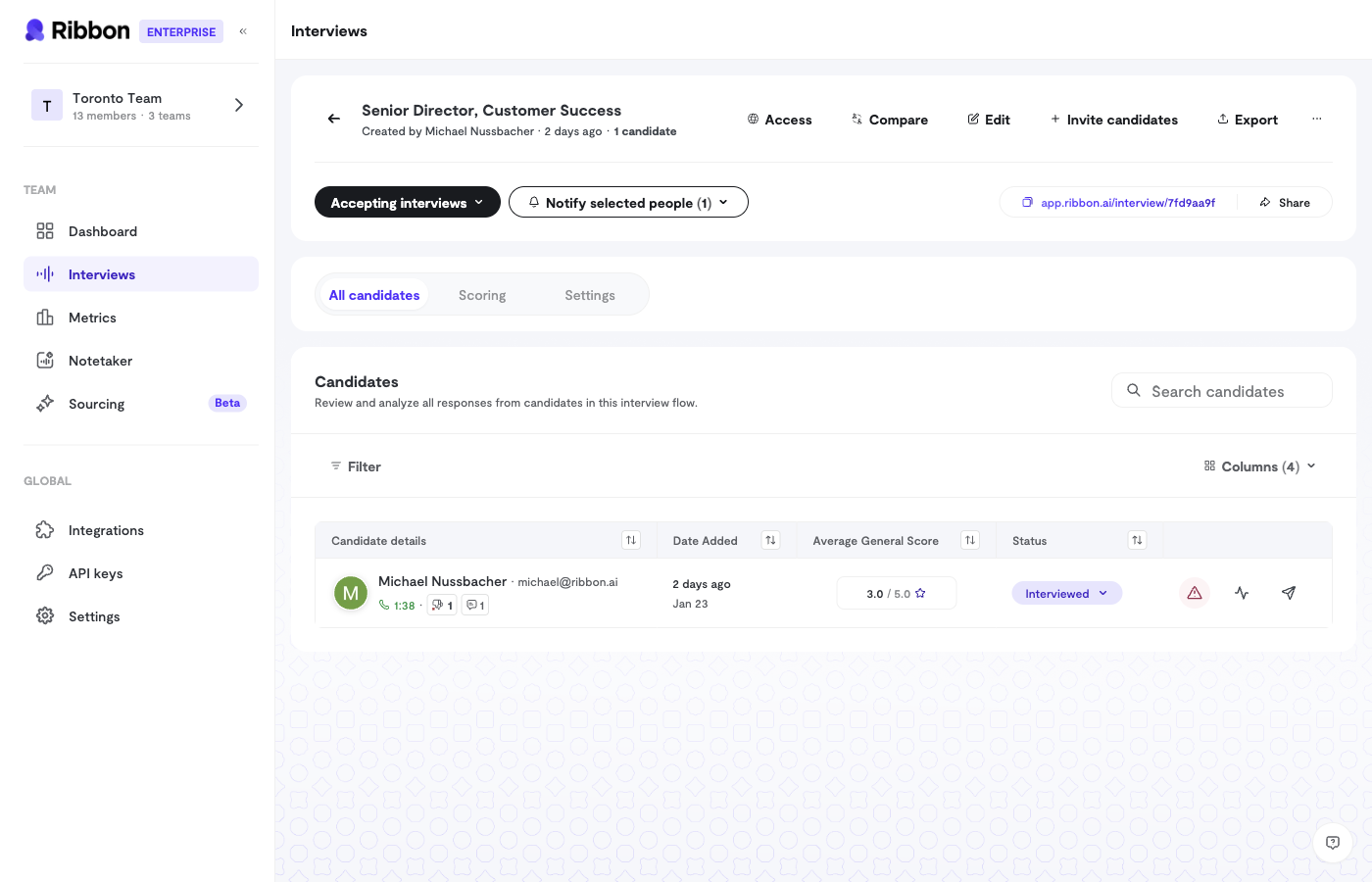 Ribbon provides tools to review completed interviews, make hiring decisions, and collaborate with your team.
## Viewing Candidates
For each completed interview, you'll see:
* **Candidate Info** - Name, email, phone (if collected)
* **Interview Status** - Completed, in progress, or pending
* **Scores** - Default and custom scores at a glance
* **Integrity Status** - Any concerns flagged
Click any candidate to see their full interview details.
## Candidate Detail Page
The detail page gives you everything you need to evaluate a candidate:
### Interview Recording
Watch or listen to the full interview. Use the playback controls to:
* Adjust speed
* Jump to specific timestamps
* Follow along with the transcript
### Transcript
The full text of the interview, organized by:
* AI questions
* Candidate responses
* Timestamps for each segment
Click any timestamp to jump to that moment in the recording.
### AI Summary
Ribbon generates a structured summary covering:
* **Background** - Candidate's relevant experience
* **Motivation & Interest** - Why they want this role
* **Skills & Tools** - Technical capabilities mentioned
* **Logistical Considerations** - Availability, location, salary expectations
* **Candidate Questions** - What they asked about the role
* **Follow-up Questions** - Suggested topics to explore in the next round
### Scores
View all default and custom scores with:
* The score value
* AI reasoning
* Positive and negative highlights with quotes
* Jump-to-moment links for each highlight
### Integrity Monitoring
See if any integrity concerns were flagged and review the details.
## Hire Voting
Collaborate with your team using the voting system:
| Vote | Meaning |
| ------------------ | ------------------------------- |
| **Strong Hire** | Highly recommend moving forward |
| **Hire** | Recommend moving forward |
| **No Hire** | Do not recommend |
| **Strong No Hire** | Strongly do not recommend |
### How to Vote
1. Open a candidate's detail page
2. Click one of the vote buttons
3. Your vote is saved immediately
### Viewing Team Votes
Click the votes summary to see:
* Who has voted
* What each person voted
* Vote counts per category
Change your vote anytime by clicking a different option. Remove your vote by clicking the same option again.
## Comparing Candidates
Compare multiple candidates side-by-side:
1. Select candidates you want to compare
2. Click **Compare**
3. View scores and answers in a matrix format
This helps when you're deciding between finalists.
## Bulk Import
For high-volume recruiting, import candidates via CSV:
1. Click **Import Candidates**
2. Download the template
3. Fill in candidate emails and names
4. Upload your CSV
5. Ribbon generates and optionally sends interview links
## Exporting Data
Export candidate data for reporting or your ATS:
### Single Candidate
Export one candidate's interview data including transcript and scores.
### Bulk Export
Export all candidates from an interview flow:
1. Go to the interview flow
2. Click **Export**
3. Choose what to include:
* Candidate info (name, email, phone)
* General scores
* Custom scores
* Interview Q\&A
Exports download as CSV files (or ZIP for multiple flows).
## Access Control
Control who on your team can see which candidates:
* **View Access** - Can see the candidate and interview
* **Edit Access** - Can also modify settings and manage the candidate
Set access at the interview flow level to control which team members can see candidates in that flow.
### Requesting Access
If you need access to a flow or candidate outside your team:
1. Click **Request Access**
2. The flow owner receives your request
3. They can grant appropriate permissions
## Candidate Status
Track where each candidate is in your process:
* **Completed** - Interview finished, ready for review
* **In Progress** - Currently in an interview
* **Pending** - Link sent but not started
* **Needs Review** - Flagged for your attention
Ribbon provides tools to review completed interviews, make hiring decisions, and collaborate with your team.
## Viewing Candidates
For each completed interview, you'll see:
* **Candidate Info** - Name, email, phone (if collected)
* **Interview Status** - Completed, in progress, or pending
* **Scores** - Default and custom scores at a glance
* **Integrity Status** - Any concerns flagged
Click any candidate to see their full interview details.
## Candidate Detail Page
The detail page gives you everything you need to evaluate a candidate:
### Interview Recording
Watch or listen to the full interview. Use the playback controls to:
* Adjust speed
* Jump to specific timestamps
* Follow along with the transcript
### Transcript
The full text of the interview, organized by:
* AI questions
* Candidate responses
* Timestamps for each segment
Click any timestamp to jump to that moment in the recording.
### AI Summary
Ribbon generates a structured summary covering:
* **Background** - Candidate's relevant experience
* **Motivation & Interest** - Why they want this role
* **Skills & Tools** - Technical capabilities mentioned
* **Logistical Considerations** - Availability, location, salary expectations
* **Candidate Questions** - What they asked about the role
* **Follow-up Questions** - Suggested topics to explore in the next round
### Scores
View all default and custom scores with:
* The score value
* AI reasoning
* Positive and negative highlights with quotes
* Jump-to-moment links for each highlight
### Integrity Monitoring
See if any integrity concerns were flagged and review the details.
## Hire Voting
Collaborate with your team using the voting system:
| Vote | Meaning |
| ------------------ | ------------------------------- |
| **Strong Hire** | Highly recommend moving forward |
| **Hire** | Recommend moving forward |
| **No Hire** | Do not recommend |
| **Strong No Hire** | Strongly do not recommend |
### How to Vote
1. Open a candidate's detail page
2. Click one of the vote buttons
3. Your vote is saved immediately
### Viewing Team Votes
Click the votes summary to see:
* Who has voted
* What each person voted
* Vote counts per category
Change your vote anytime by clicking a different option. Remove your vote by clicking the same option again.
## Comparing Candidates
Compare multiple candidates side-by-side:
1. Select candidates you want to compare
2. Click **Compare**
3. View scores and answers in a matrix format
This helps when you're deciding between finalists.
## Bulk Import
For high-volume recruiting, import candidates via CSV:
1. Click **Import Candidates**
2. Download the template
3. Fill in candidate emails and names
4. Upload your CSV
5. Ribbon generates and optionally sends interview links
## Exporting Data
Export candidate data for reporting or your ATS:
### Single Candidate
Export one candidate's interview data including transcript and scores.
### Bulk Export
Export all candidates from an interview flow:
1. Go to the interview flow
2. Click **Export**
3. Choose what to include:
* Candidate info (name, email, phone)
* General scores
* Custom scores
* Interview Q\&A
Exports download as CSV files (or ZIP for multiple flows).
## Access Control
Control who on your team can see which candidates:
* **View Access** - Can see the candidate and interview
* **Edit Access** - Can also modify settings and manage the candidate
Set access at the interview flow level to control which team members can see candidates in that flow.
### Requesting Access
If you need access to a flow or candidate outside your team:
1. Click **Request Access**
2. The flow owner receives your request
3. They can grant appropriate permissions
## Candidate Status
Track where each candidate is in your process:
* **Completed** - Interview finished, ready for review
* **In Progress** - Currently in an interview
* **Pending** - Link sent but not started
* **Needs Review** - Flagged for your attention