> ## Documentation Index
> Fetch the complete documentation index at: https://docs.ribbon.ai/llms.txt
> Use this file to discover all available pages before exploring further.
# Teams & Permissions
> How to manage teams and control access to interviews and candidates
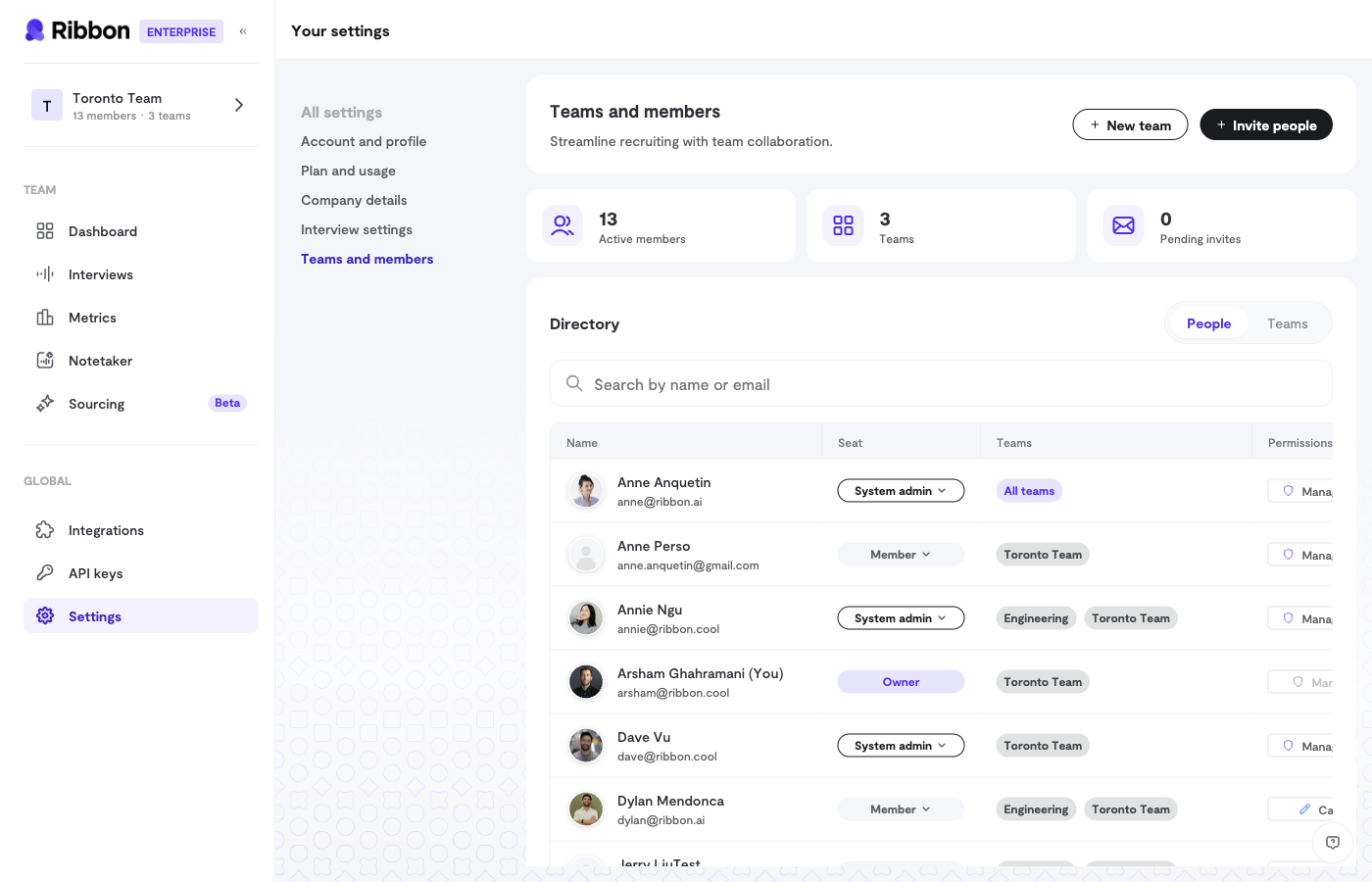 Ribbon's team system lets you organize your recruiting efforts and control who can access what.
## Teams
A team is a group of recruiters who work together on hiring. Each team can have:
* Multiple members with different roles
* Shared interview flows
* Collaborative candidate review
### Creating a Team
1. Go to **Settings** > **Teams**
2. Click **Create Team**
3. Name your team
4. Add members by email
### Team Roles
| Role | Capabilities |
| ---------- | ------------------------------------------------------- |
| **Admin** | Full control over team settings, members, and all flows |
| **Member** | Access to assigned interview flows based on permissions |
## Interview Flow Permissions
Control access at the interview flow level:
### Permission Types
| Permission | What They Can Do |
| ------------ | -------------------------------------------------------------------------------- |
| **Can View** | See candidates, watch interviews, view scores |
| **Can Edit** | All view permissions plus: modify flow settings, manage candidates, send invites |
### Setting Permissions
1. Open an interview flow
2. Go to **Settings** > **Access Control**
3. For each team member, toggle:
* View access (on/off)
* Edit access (on/off)
### Bulk Permission Actions
Quickly set permissions for everyone:
* **All can view** - Give everyone view access
* **All can edit** - Give everyone edit access
* **Clear all** - Remove all permissions
## Admin-Only Features
Some features are restricted to organization admins:
* **API Keys** - Create and manage API keys
* **Global Interview Settings** - Default settings for all flows
* **Pronunciation Dictionary** - Custom word pronunciations
* **Billing & Payment** - Subscription management
* **Team Management** - Add/remove team members
## Access Requests
If you need access to a flow or candidate outside your team:
1. Find the flow or candidate
2. Click **Request Access**
3. The owner receives a notification
4. They can grant appropriate permissions
This allows cross-team collaboration while maintaining control.
## Best Practices
### For Small Teams
* Use a single team with all members
* Give most people edit access for flexibility
### For Large Organizations
* Create separate teams by department or function
* Use view-only access for stakeholders who need visibility
* Reserve edit access for those actively managing candidates
### For Sensitive Roles
* Limit access to only those directly involved
* Use the request system for ad-hoc needs
* Regularly audit who has access to what
Ribbon's team system lets you organize your recruiting efforts and control who can access what.
## Teams
A team is a group of recruiters who work together on hiring. Each team can have:
* Multiple members with different roles
* Shared interview flows
* Collaborative candidate review
### Creating a Team
1. Go to **Settings** > **Teams**
2. Click **Create Team**
3. Name your team
4. Add members by email
### Team Roles
| Role | Capabilities |
| ---------- | ------------------------------------------------------- |
| **Admin** | Full control over team settings, members, and all flows |
| **Member** | Access to assigned interview flows based on permissions |
## Interview Flow Permissions
Control access at the interview flow level:
### Permission Types
| Permission | What They Can Do |
| ------------ | -------------------------------------------------------------------------------- |
| **Can View** | See candidates, watch interviews, view scores |
| **Can Edit** | All view permissions plus: modify flow settings, manage candidates, send invites |
### Setting Permissions
1. Open an interview flow
2. Go to **Settings** > **Access Control**
3. For each team member, toggle:
* View access (on/off)
* Edit access (on/off)
### Bulk Permission Actions
Quickly set permissions for everyone:
* **All can view** - Give everyone view access
* **All can edit** - Give everyone edit access
* **Clear all** - Remove all permissions
## Admin-Only Features
Some features are restricted to organization admins:
* **API Keys** - Create and manage API keys
* **Global Interview Settings** - Default settings for all flows
* **Pronunciation Dictionary** - Custom word pronunciations
* **Billing & Payment** - Subscription management
* **Team Management** - Add/remove team members
## Access Requests
If you need access to a flow or candidate outside your team:
1. Find the flow or candidate
2. Click **Request Access**
3. The owner receives a notification
4. They can grant appropriate permissions
This allows cross-team collaboration while maintaining control.
## Best Practices
### For Small Teams
* Use a single team with all members
* Give most people edit access for flexibility
### For Large Organizations
* Create separate teams by department or function
* Use view-only access for stakeholders who need visibility
* Reserve edit access for those actively managing candidates
### For Sensitive Roles
* Limit access to only those directly involved
* Use the request system for ad-hoc needs
* Regularly audit who has access to what